How-to guides
Submit → approve / deny an expense
By the Mylo team · Last updated June 30, 2026
- Employee: open a draft, check the details, and tap Submit. It moves to submitted and appears in the approval queue.
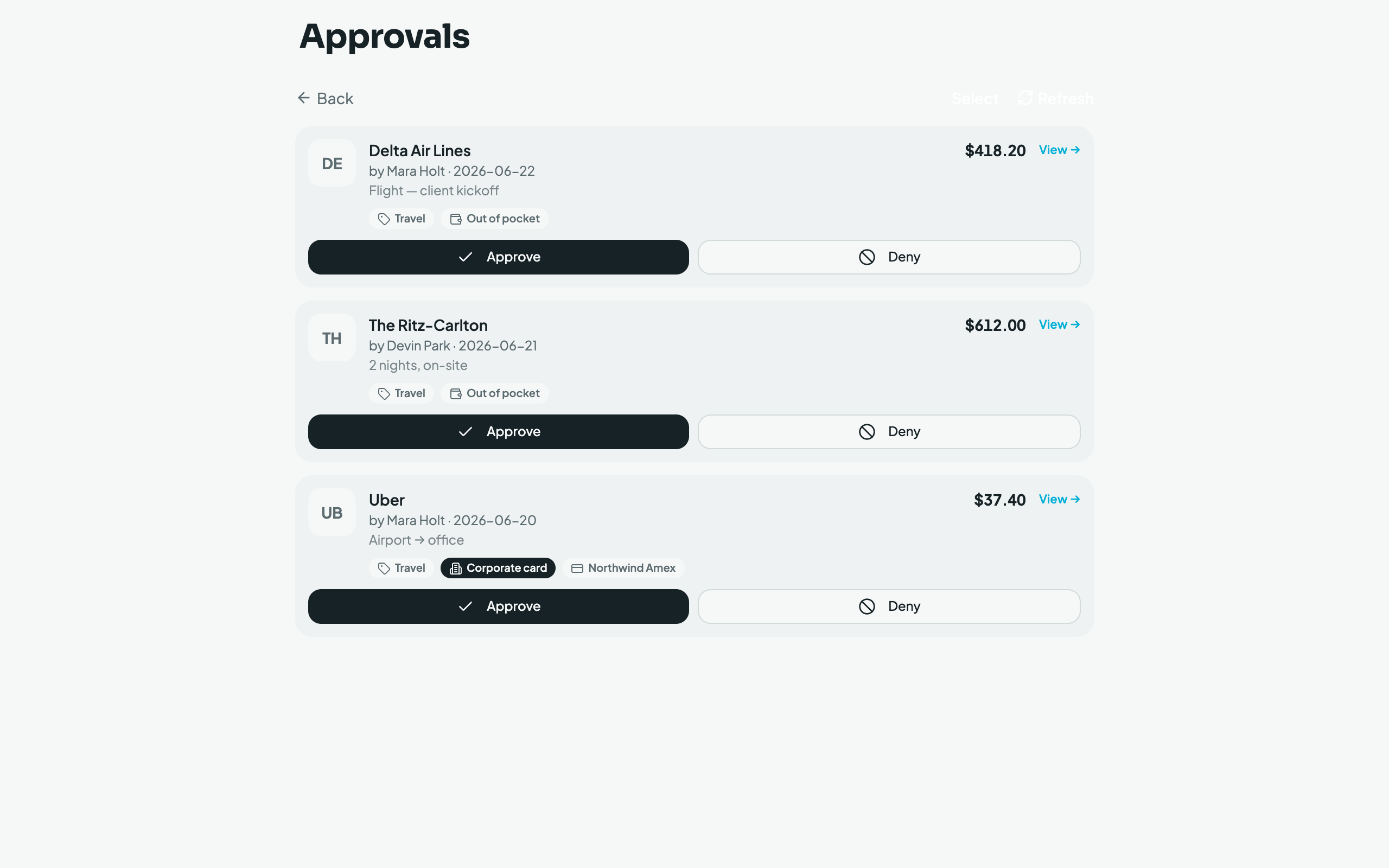
- Reviewer (owner, admin, or the connected accountant): open the approval queue. Tap Approve to sign off, or Deny and enter a reason.
- A denied expense returns to the employee with the reason attached; they edit and resubmit. Approve/deny can be done in bulk via Select mode.
Good to know
- If your org has opted into approval workflows, one tap may not be the whole story: an expense can require several distinct sign‑offs, in order (for example two owners, then someone from Accounting). The queue and the buttons look the same; the expense simply stays submitted until every required step has signed. A deny at any step still returns it to the employee, and resubmitting clears any signatures already collected.
- For multi‑step chains, approver groups, and amount thresholds, see Approval workflows (feature) and Set up approval workflows (how‑to).
The accountant's approval queue (desktop), scoped to the currently selected client: